> For the complete documentation index, see [llms.txt](https://docs.volary.io/llms.txt). Markdown versions of documentation pages are available by appending `.md` to page URLs; this page is available as [Markdown](https://docs.volary.io/aerie/user-guide/managing-assets.md).
# Managing Assets
Aerie provides comprehensive tools for handling digital assets, particularly NFTs. This functionality allows users to oversee, track, and manage their assets efficiently. Here is an overview of the process and features involved:
#### Overview
Managing assets involves viewing detailed information about each asset, including metadata, transaction history, and ownership details. Users can perform various actions such as transferring ownership, updating metadata, and viewing transaction history directly within the platform.
#### Key Features
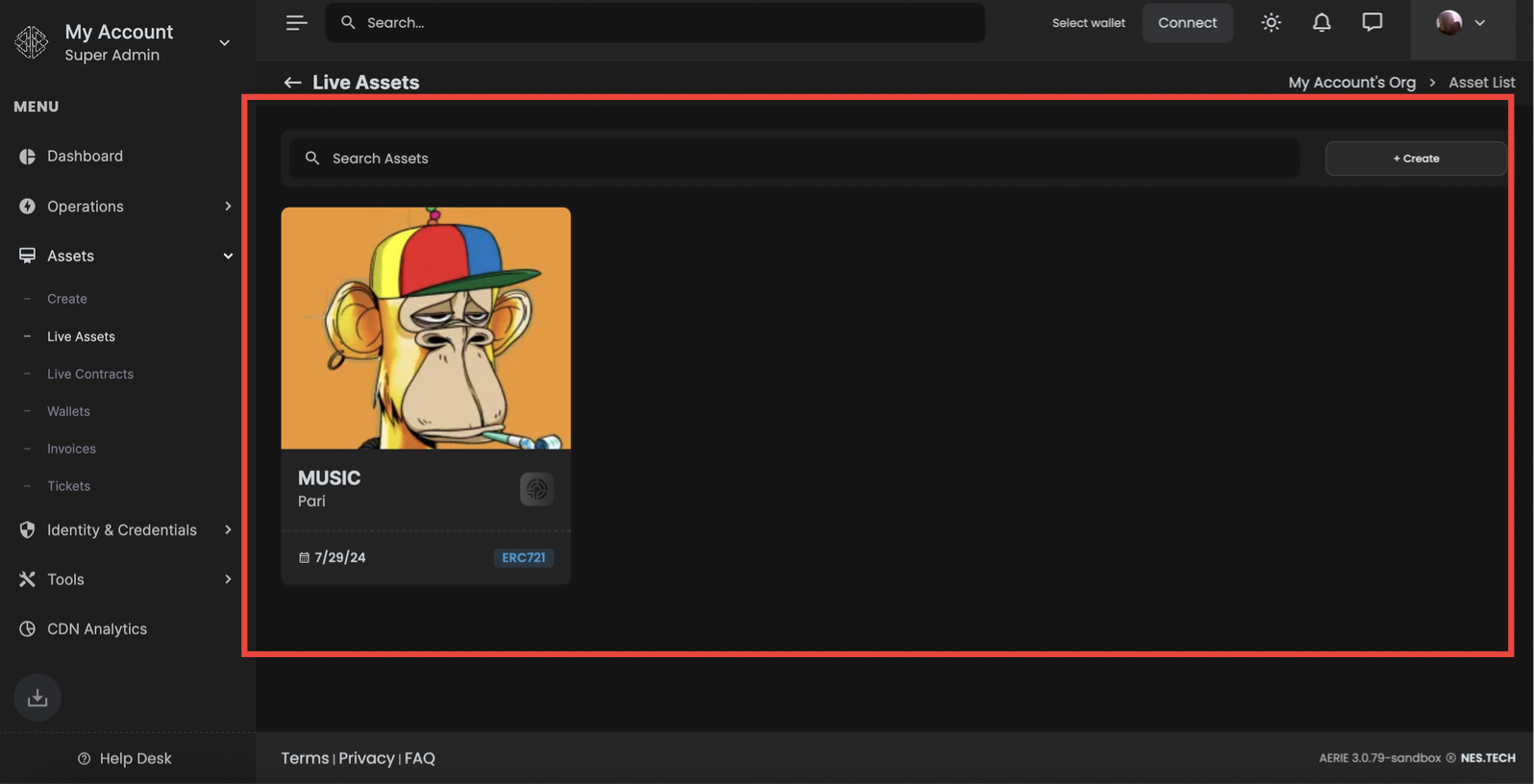
1. **Asset List View**: Displays all the assets owned or managed by the user, including images, titles, minting dates, and contract types.
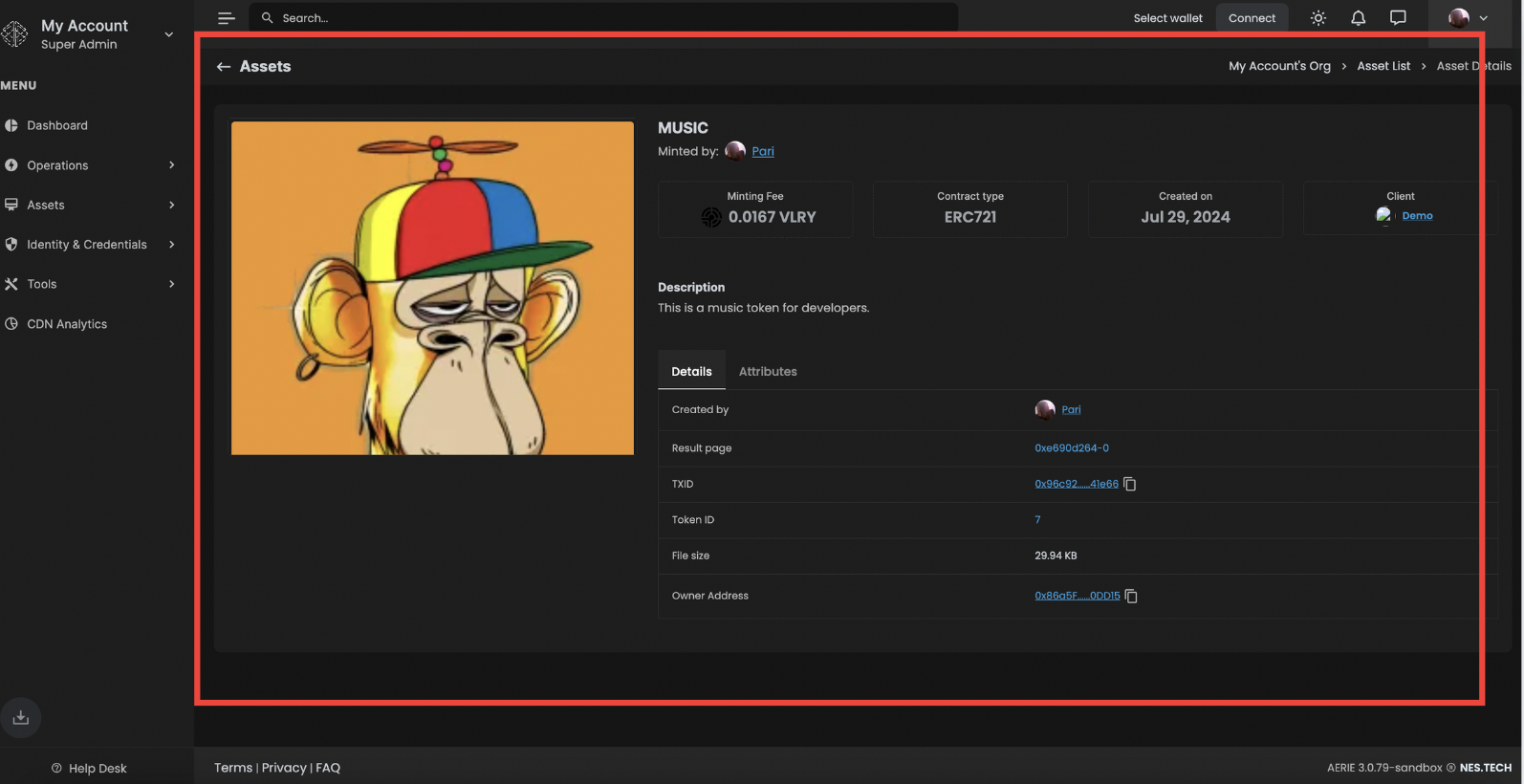
2. **Asset Details**: Provides detailed information about each asset, including:
* Minting fee
* Contract type (e.g., ERC721)
* Creation date
* Associated client details
* Metadata such as description, creator, and unique identifiers
3. **Transaction History**: Lists all transactions related to the asset, including transaction IDs, timestamps, and status.
4. **Attributes Management**: Allows users to view and manage various attributes associated with the asset, enhancing the customization and utility of each NFT.
5. **Action Buttons**: Includes options to perform essential actions like transferring the asset, updating metadata, and accessing external links related to the asset.
#### Steps to Manage Assets
1. **View Assets**: Navigate to the "Assets" section and select "Live Assets" to view the list of all managed assets.
2. **Select an Asset**: Click on any asset to view its detailed information. This includes the asset's image, name, minting fee, contract type, and creation date.
3. **Review Details**: Examine the detailed information provided for the asset. This includes metadata, transaction history, and ownership details.
4. **Perform Actions**: Use the action buttons to perform tasks such as transferring ownership or updating metadata. This ensures that the asset is kept up-to-date and properly managed.